SimpleFIN Setup
Client Version 24.10.0 and Server Version 24.10.0 or higher are required for this feature.
Generate Setup Token for Actual
-
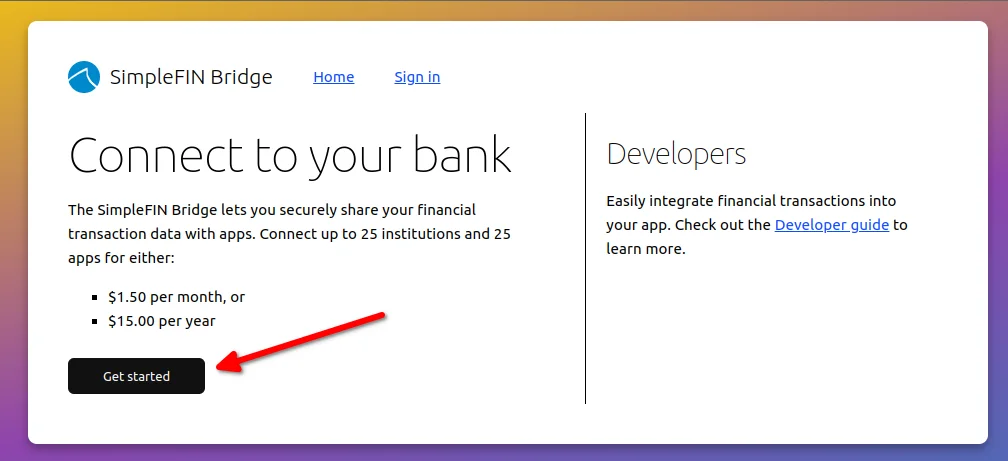
Create an account with SimpleFIN Bridge - https://beta-bridge.simplefin.org/ , by clicking "Get Started" and entering your email address.
-
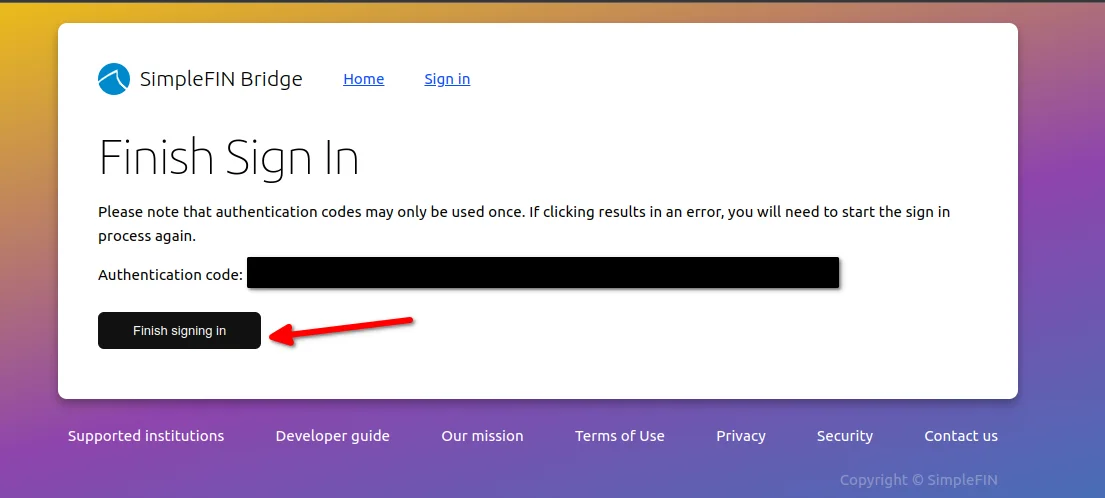
You will receive an email with the login link, after a few minutes. Click this link to log into your account dashboard.
-
Accept the terms, on first login, and then you will be taken to "My Account".
-
Link any banks that you wish.
- You will need to add your accounts first, through "Financial Institutions" > New Connection
- You will need to subscribe before your first can be added. Current rates are $1.50 / mo, or $15 / year.
-
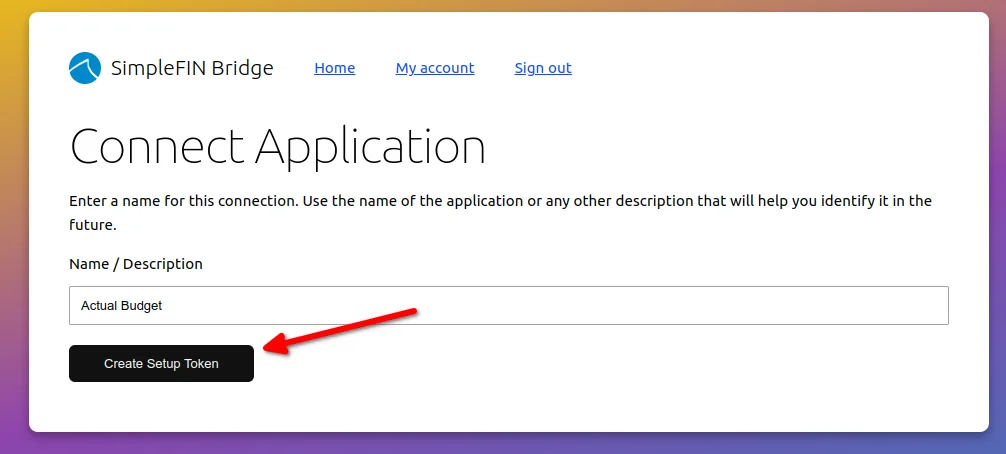
From the "My Accounts" page, under "Apps", click on "New Connection". Give your connection a name, and click "Create Setup Token"
This is only for you to easily identify it in the SimpleFIN connections overview.
-
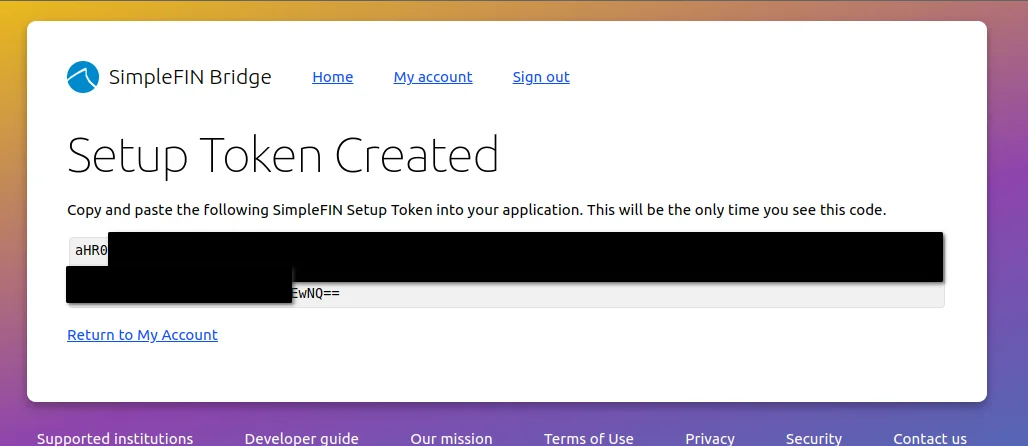
Save the generated Setup Token someplace safe (one-time use only).
-
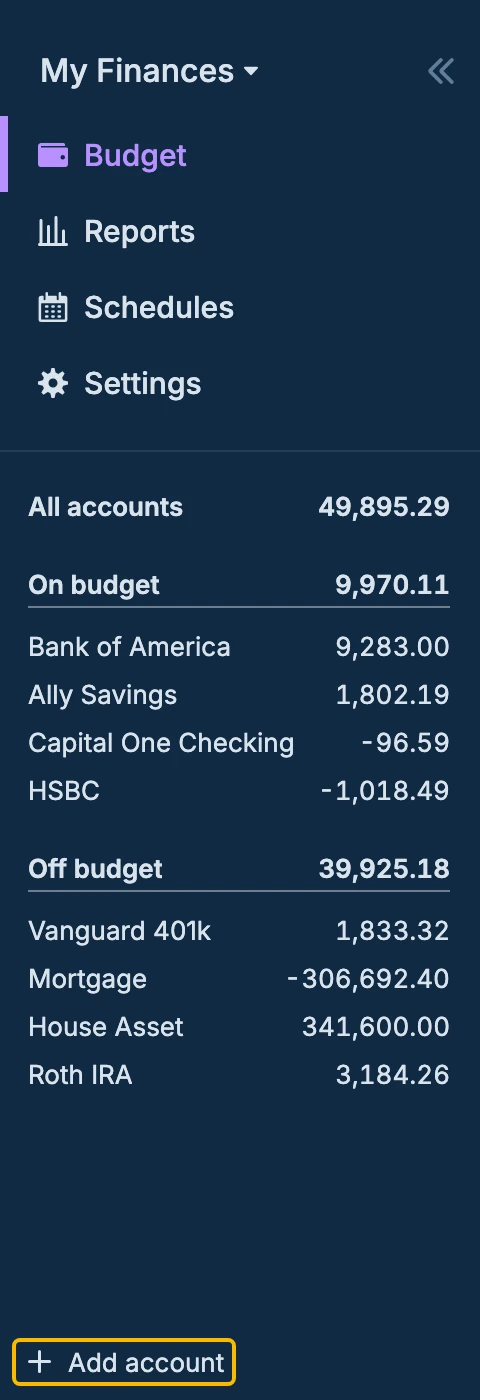
Back in Actual, click on "+ Add account" at the bottom of the sidebar.
-
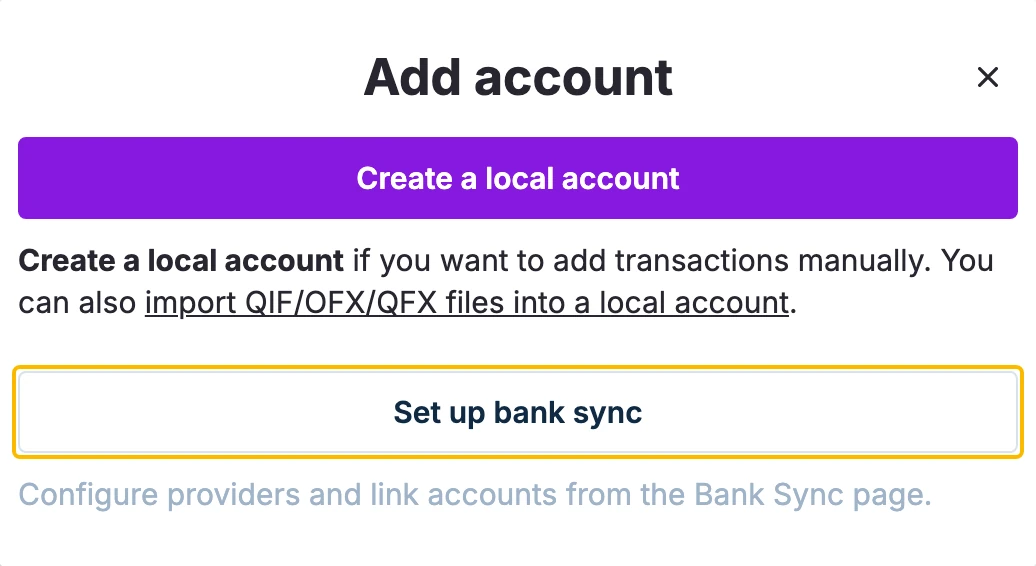
Click Set up bank sync. This opens the Bank Sync page in Settings.
-
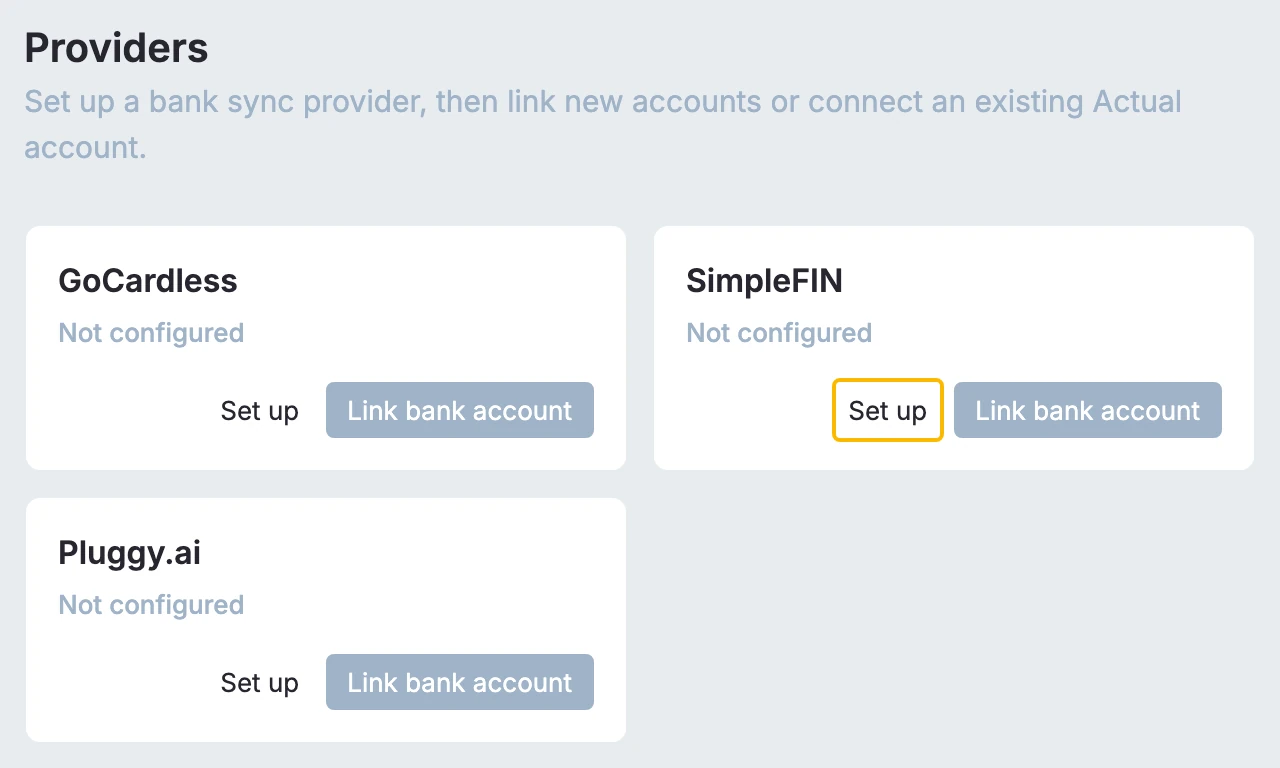
Under Providers, click Set up on the SimpleFIN card.
-
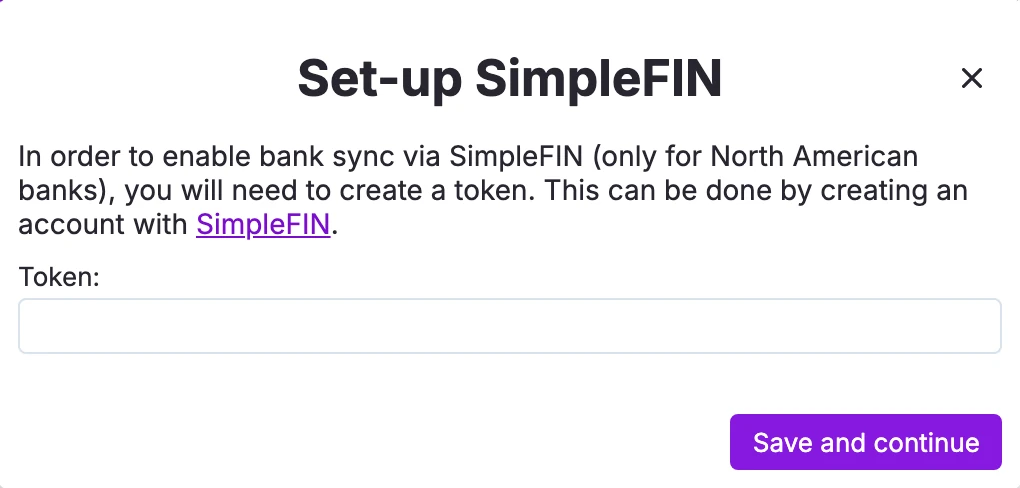
You will be asked to enter your SimpleFIN setup token. The keys from this value will be saved on the server, so you will only need to enter it once.
Link Accounts with SimpleFIN
-
Add the link to your accounts in actual (Existing or New).
-
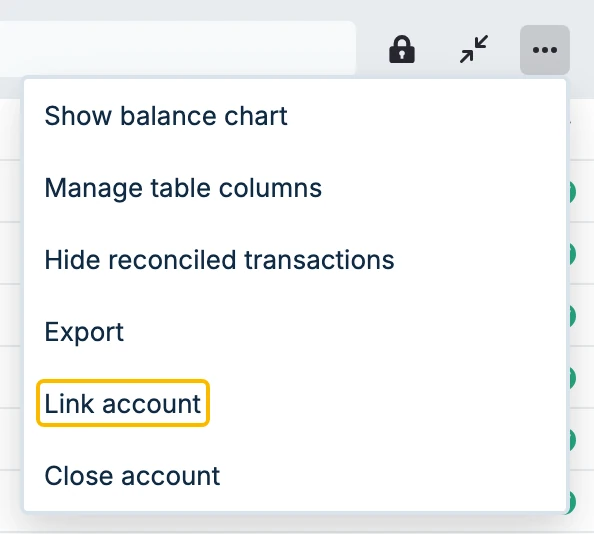
For an existing account, click on that account, select the ... (kebab menu) in the top right, and choose Link account
-
To create a new account with bank syncing click on the '+ Add account' link in the left menu at the bottom, then click Set up bank sync
-
-
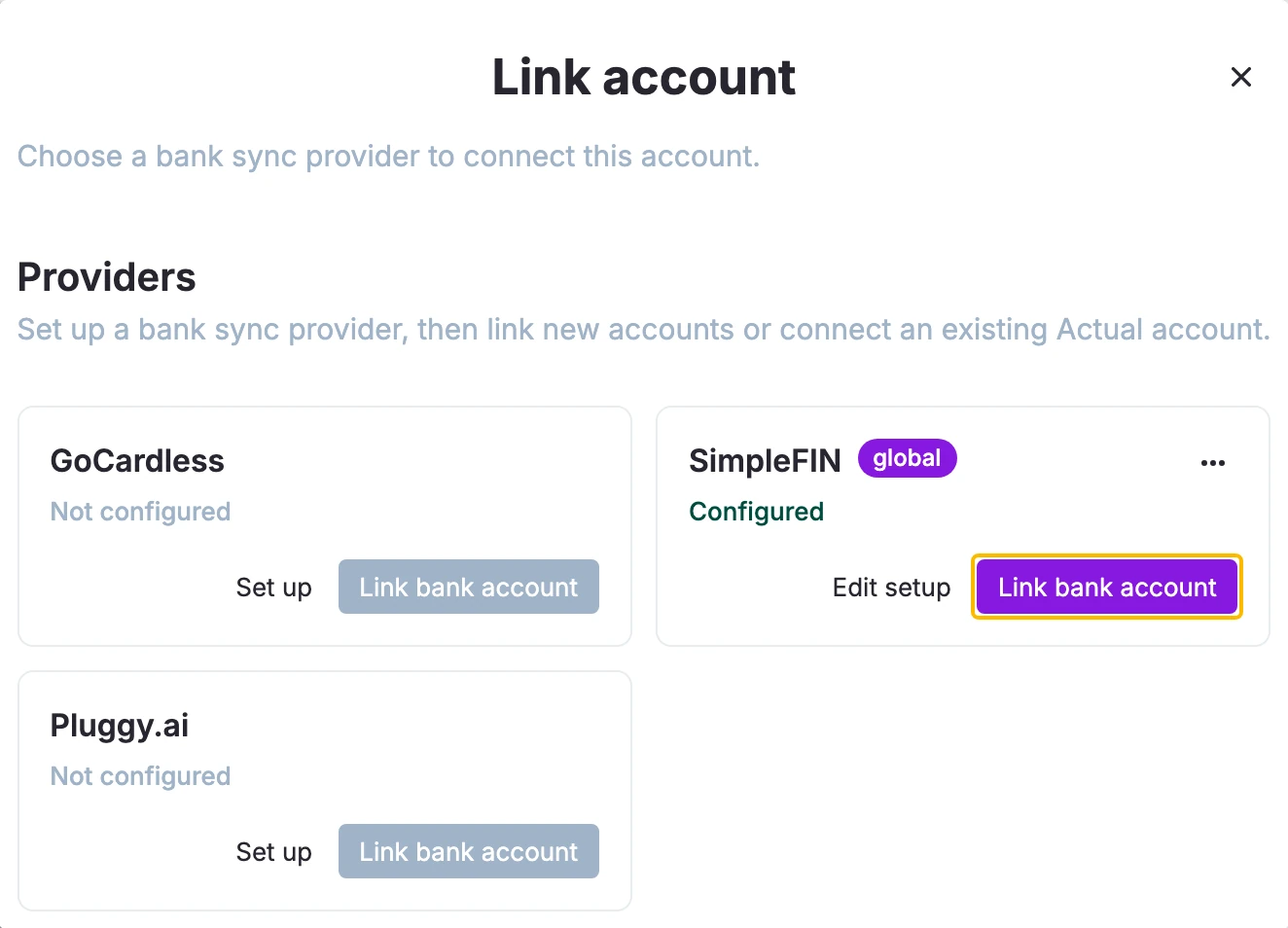
Click the Link bank account button on the SimpleFIN card.
-
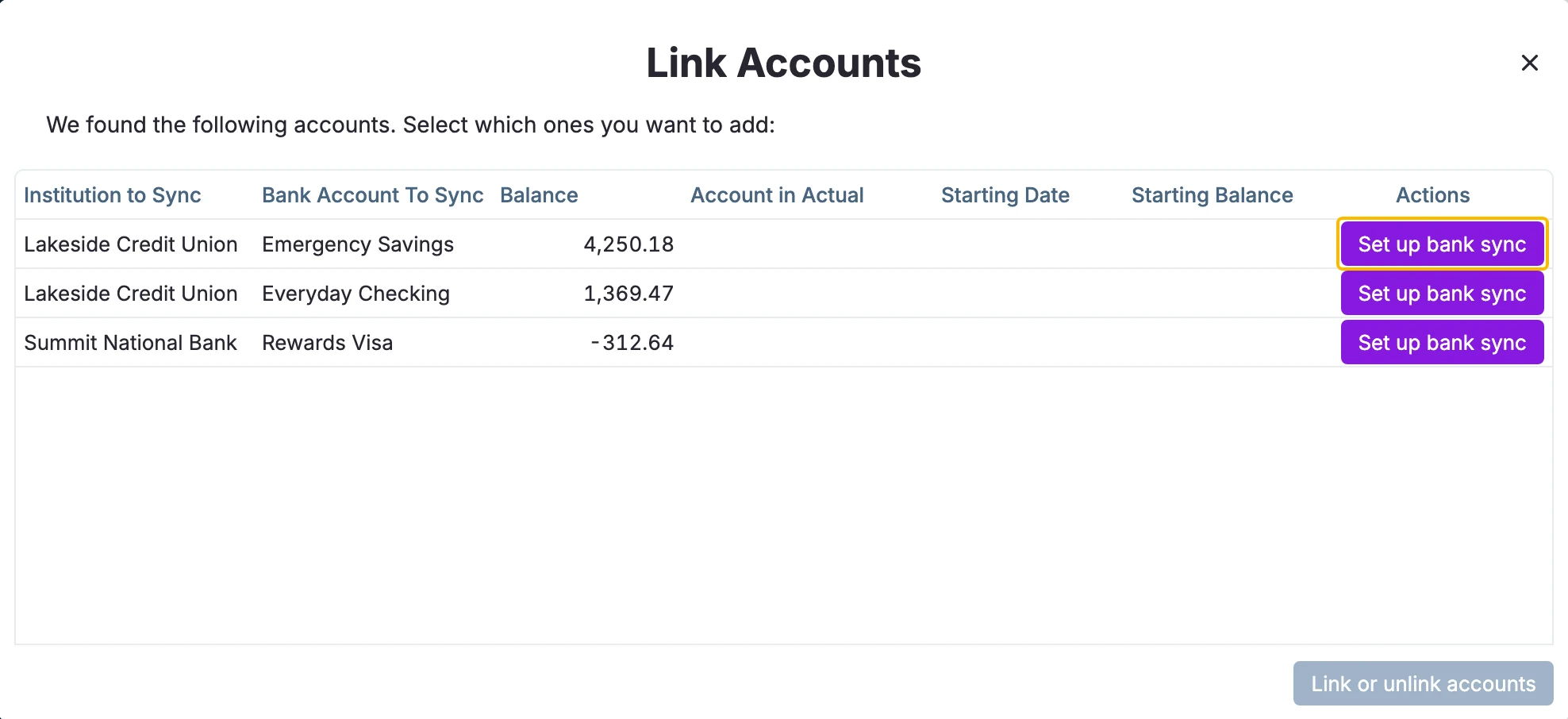
A Link Accounts box will pop up. To link a SimpleFIN account to an Actual account, click the "Set up bank sync" button in the same row.
- The "Bank Account To Sync" column contains the names of the accounts found via SimpleFIN
- The "Account in Actual" column contains the name of the Actual account it is linked to.
- You can also click in the "Account in Actual" column, instead of clicking the "Set up bank sync" button.
-
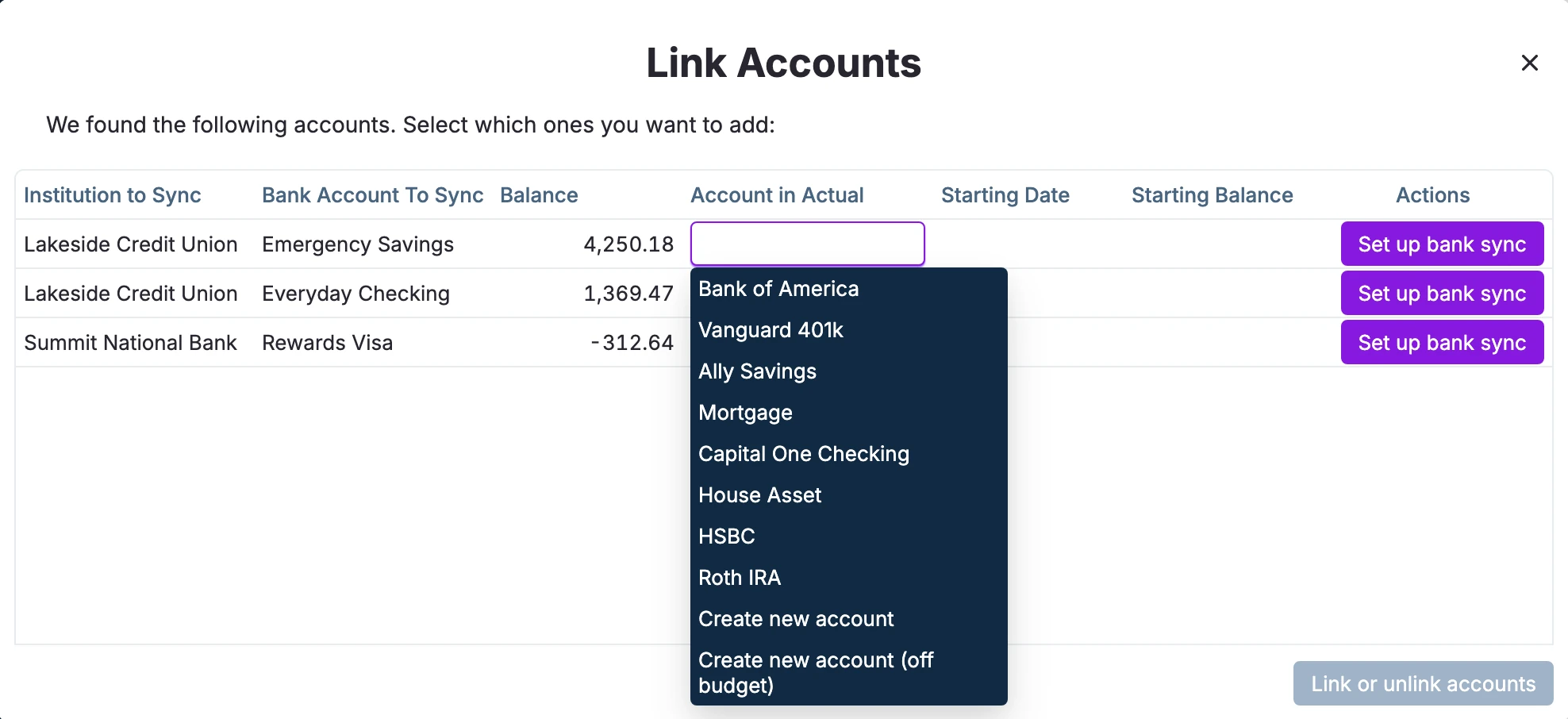
Either select an existing Actual account to link to, or create a new one.
-
When you've mapped all your accounts that you wish to, click the "Link accounts" button.
SimpleFIN Considerations
-
Currently, the sync pulls at most 90 days of data from each linked account. The amount of data SimpleFIN can get from each account may vary, so not all accounts may have 90 days of historical transactions that can be imported.
-
SimpleFIN's data updates one time / day, roughly every 24 hours, for each linked account. The time of day that each bank updates in SimpleFIN may vary, even from day to day (based on the bank and upstream provider, MX).
Resetting the Setup Token
To reset your SimpleFIN setup token:
-
Click "Add Account" in the sidebar.
-
Next to "Link bank account with SimpleFIN", click the three-dot menu button.
-
Click "Reset SimpleFIN credentials".
You will then need to obtain a new setup token from SimpleFIN and enter it into Actual.