Pluggy.ai Setup
Create CLIENT ID and CLIENT SECRET for Actual
-
Create an account at https://pluggy.ai.
-
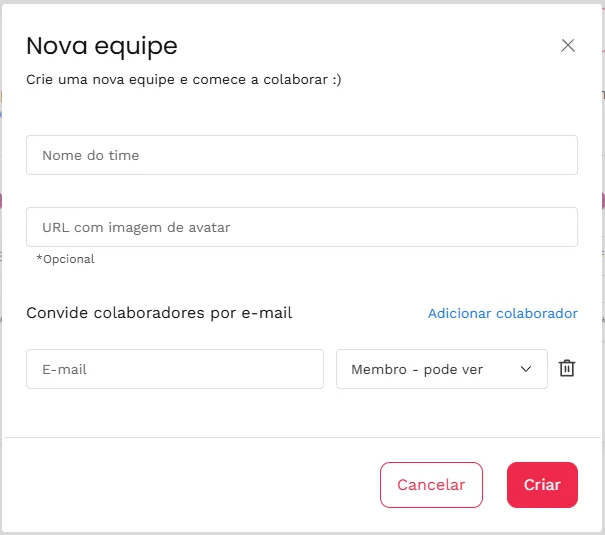
Sign in to the Pluggy Dashboard and create a new team.
-
In the Pluggy Dashboard, create an Application before generating API keys:
- Click Applications in the top bar and create a new application.
- Once created, you will see the Client ID and Client Secret.

-
Store both values securely. You will need them in Actual.
Setup Meu Pluggy
Meu Pluggy is a free integration provided by Pluggy.ai for developers. You need to sync your bank using this tool to access it for free.
- Visit Meu Pluggy and log in or sign up.
- Follow the instructions provided on the official github repository.
Please note, you will only be able to connect your account to meu.pluggy.ai while your pluggy.ai trial period is active so please complete this step promptly. Once the trial period lapses, the account will remain connected but the connector list configuration will not be editable.
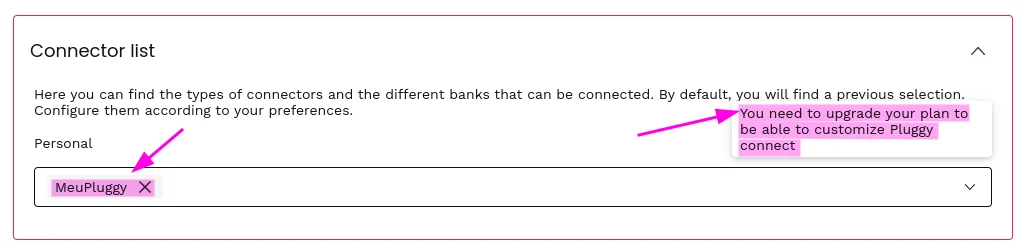
- After completing the steps in item 2, return to the Pluggy Dashboard. Go to the application you created and click "Ir para Demo" to open the demo app.
- In the top right corner, open the three-dot menu. Open it and click Copiar Item ID from your bank sync to the clipboard. You'll need this to complete your Pluggy.ai bank sync setup.

Set Up Pluggy in Actual
Pluggy integration is experimental at this point, so before you can use it you need to enable it under Settings -> Advanced Settings -> Experimental Features -> Pluggy.ai Bank Sync
-
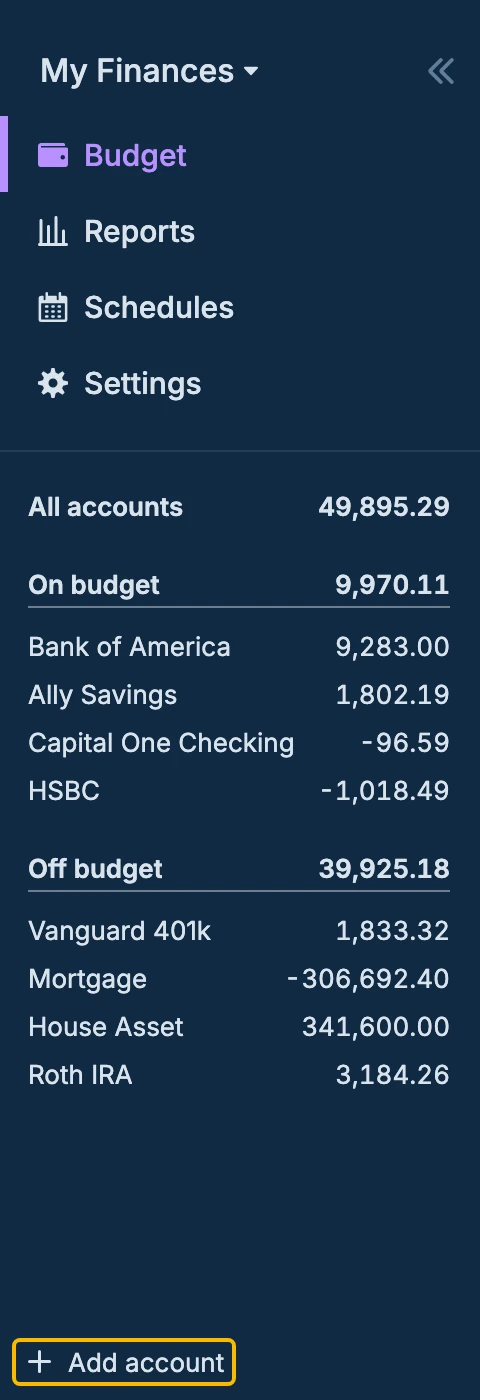
In Actual, click "+ Add account" at the bottom of the sidebar.
-
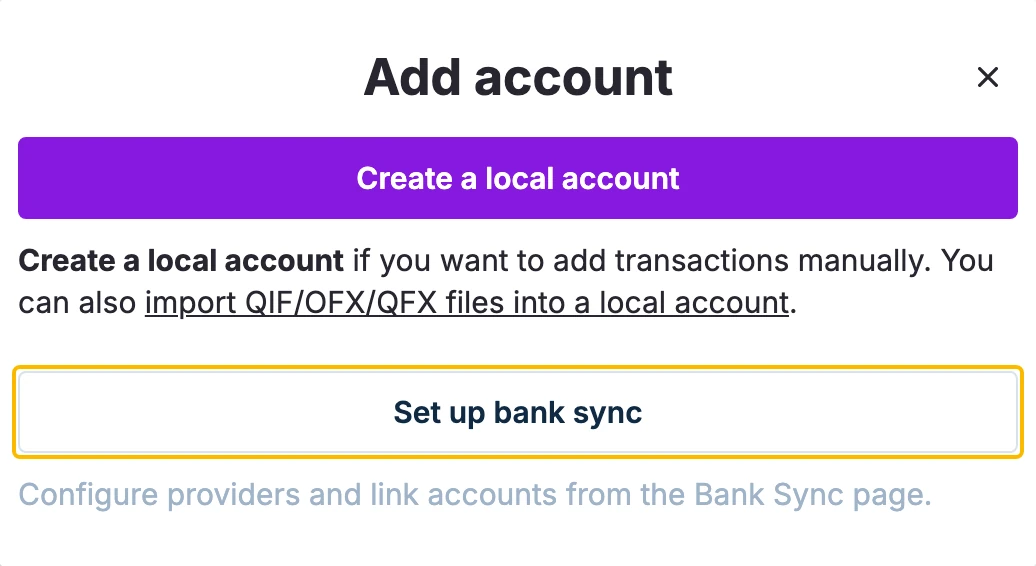
Select Set up bank sync. This opens the Bank Sync page in Settings.
-
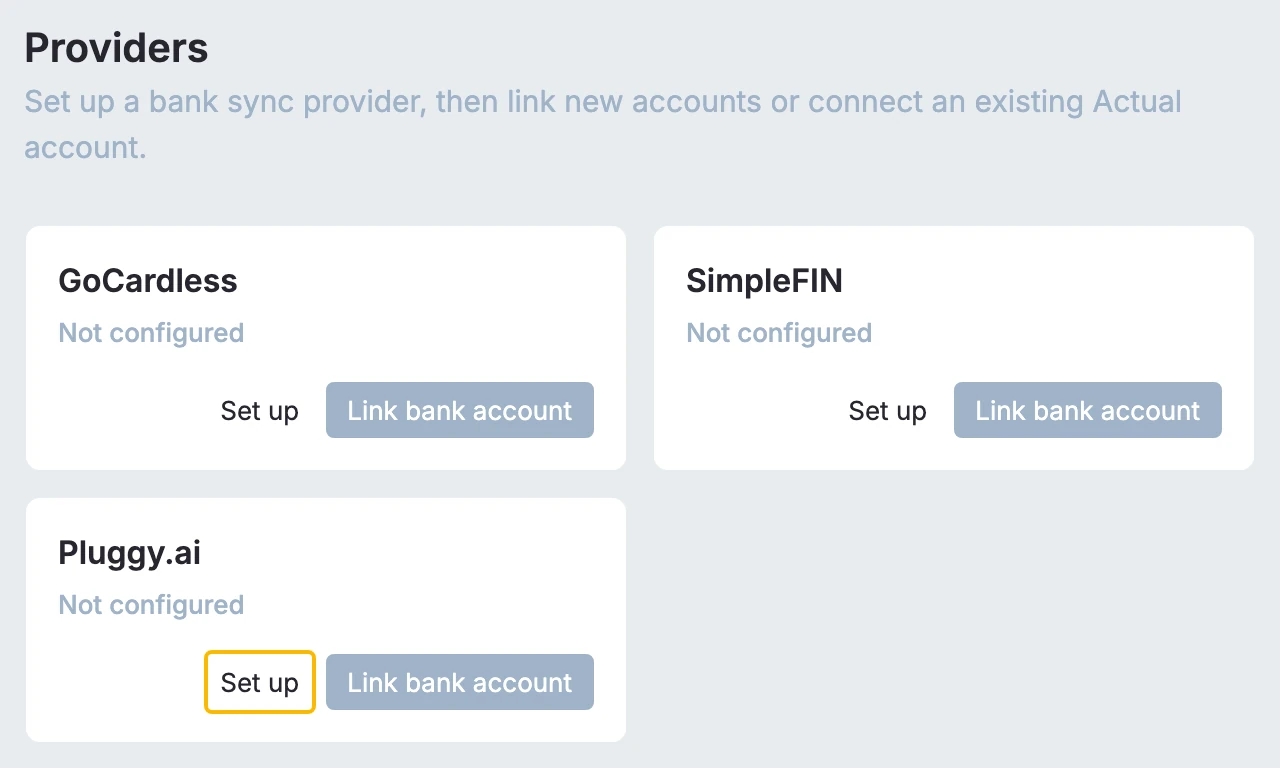
Under Providers, click Set up on the Pluggy.ai card.
-
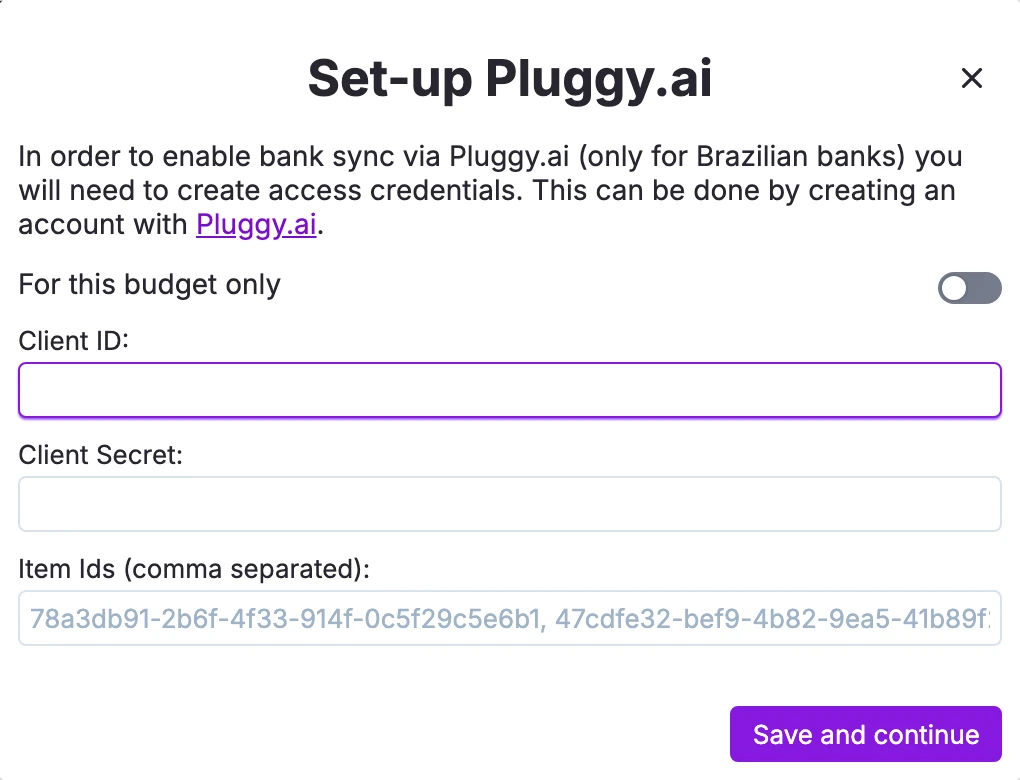
In the dialog that appears, enter:
- Client ID: From your Pluggy Dashboard
- Client Secret: From your Pluggy Dashboard
- Item IDs: Comma-separated if entering more than one
-
Click Save and continue. The credentials will be securely stored on the server.
Link Accounts with Pluggy
-
In Actual, link a bank account (existing or new):
-
For an existing account, click it, then click the
...(kebab menu) and choose Link account.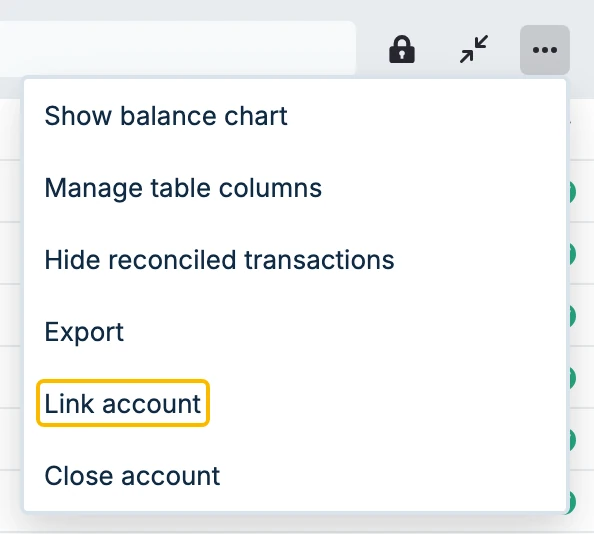
-
For a new account, click "+ Add account" in the sidebar, then Set up bank sync.
-
-
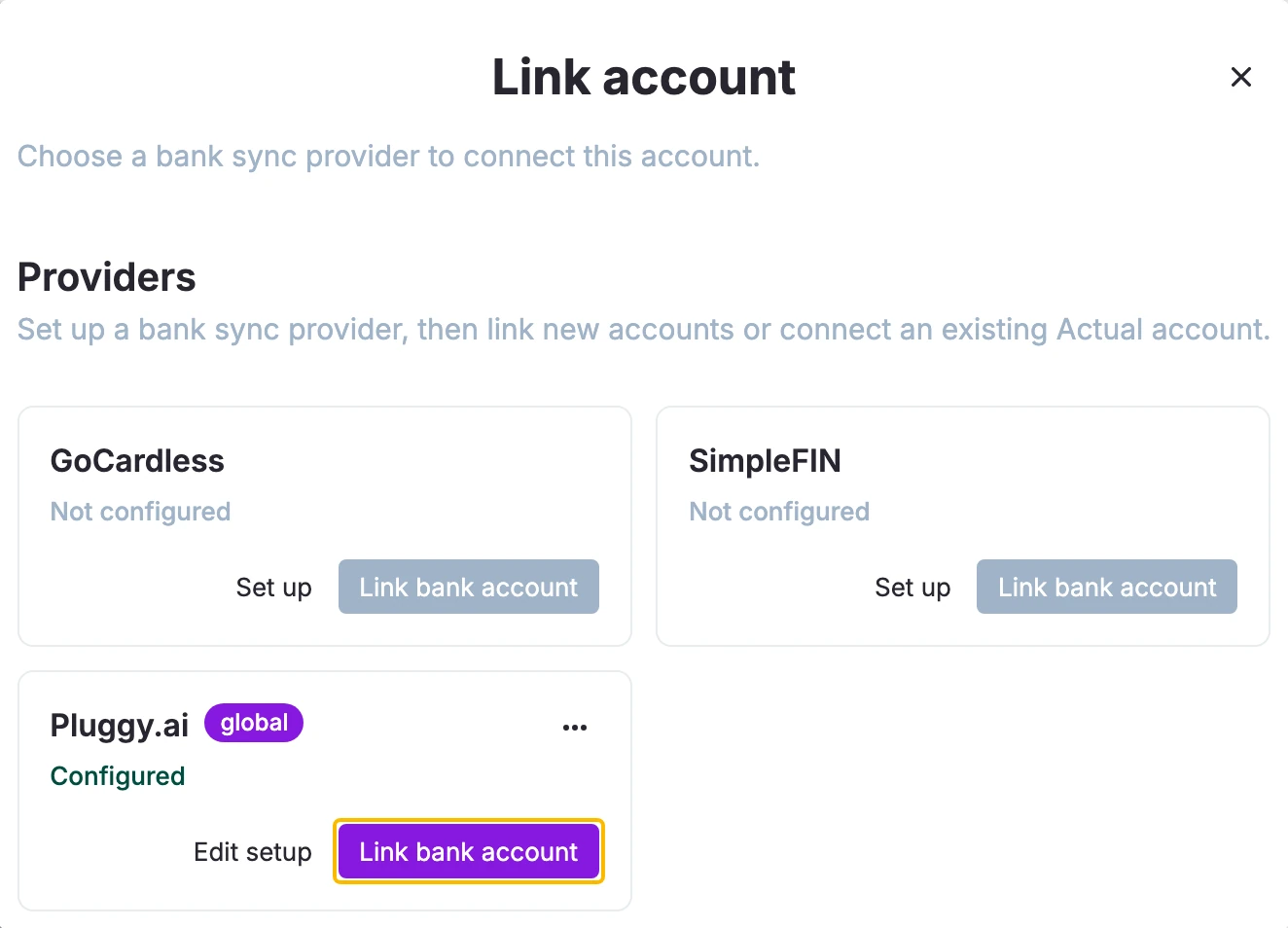
Click Link bank account on the Pluggy.ai card.
-
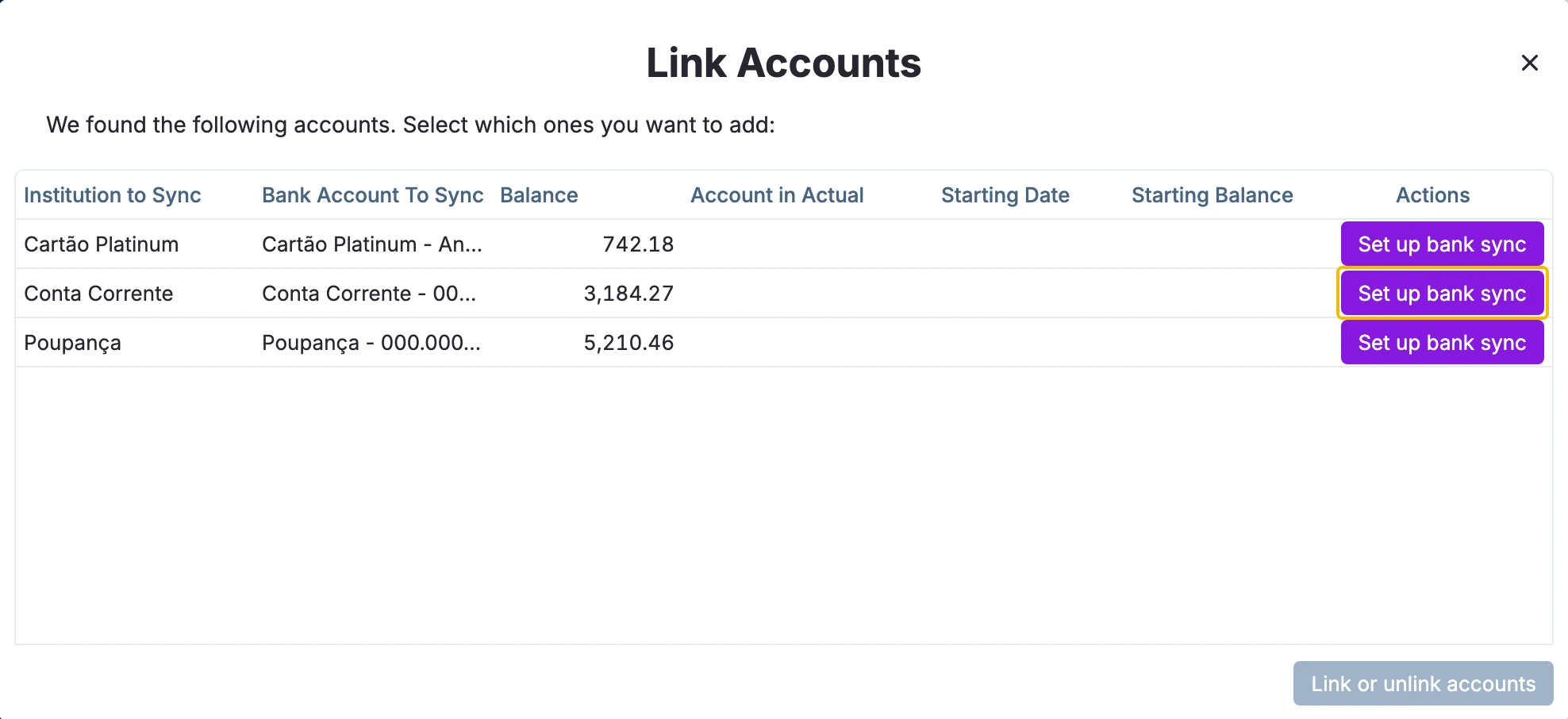
A list of accounts from your Pluggy connection will appear.
-
Click Set up bank sync next to the one you want to sync.
Pluggy Notes & Limitations
- Item IDs are associated with user-authorized connections and will expire if access is revoked or the token expires.
- Use the sandbox environment for testing — test credentials are available in the Pluggy Docs.
- Data refresh frequency may vary by financial institution.
Resetting Pluggy Credentials
To reset your Pluggy connection:
- In Actual, click Add Account.
- Next to "Set-up Pluggy for bank-sync", open the three-dot menu.
- Click Reset Pluggy credentials.
You'll then need to generate a new API key and obtain a new Item ID to reconnect.