The Budget
This view lets you manage your budget. You'll find more information about envelope budgeting with Actual in Budgeting.
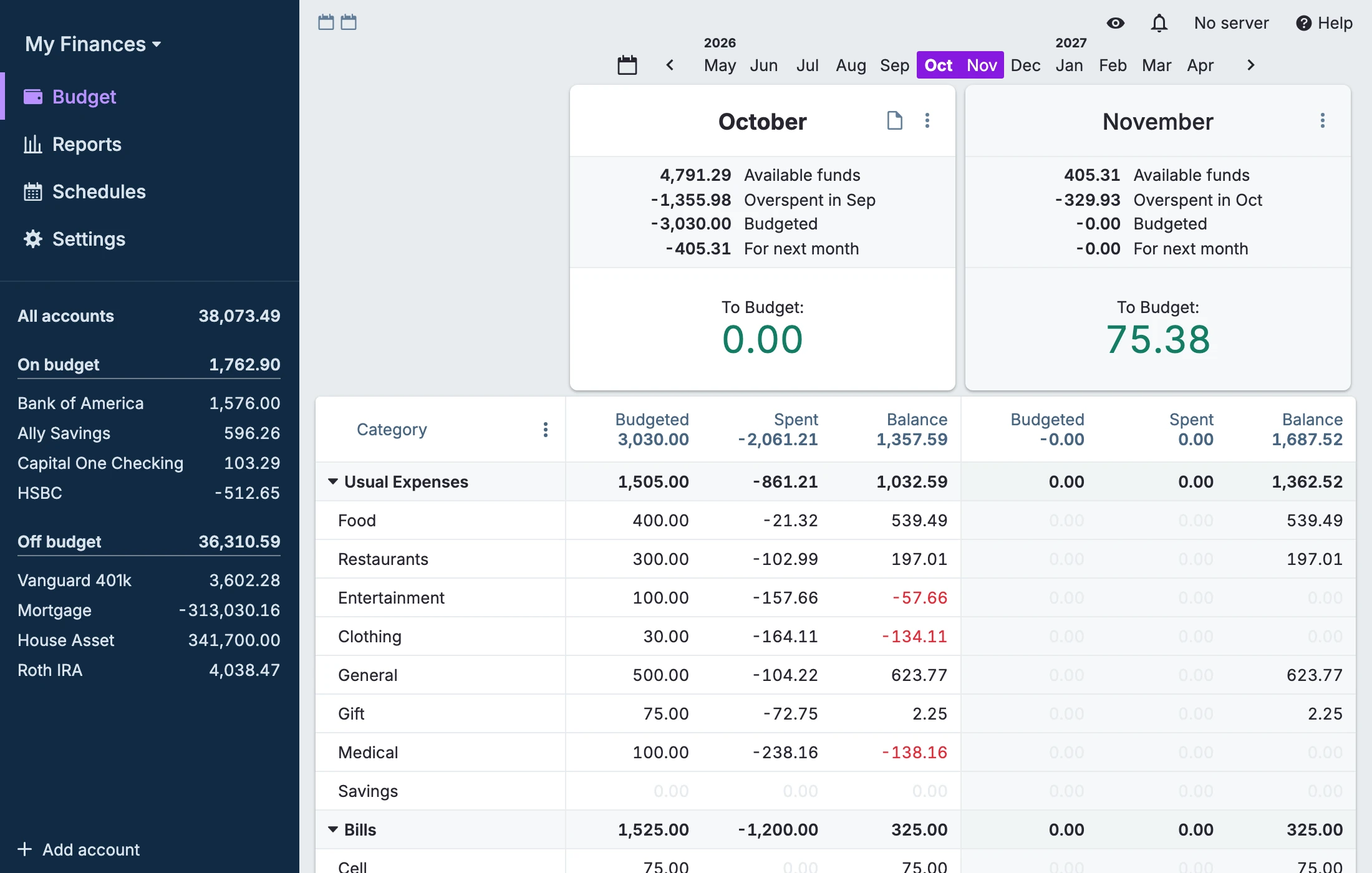
The maximum number of months you can see at any one time is defined by the width of your screen.
You can choose how many months to display by clicking on the corresponding number of calendar icons in the top left corner.

Based on this, you can then choose which months to show:

The Month header
At the top of each month, you have a couple of choices in the user interface.
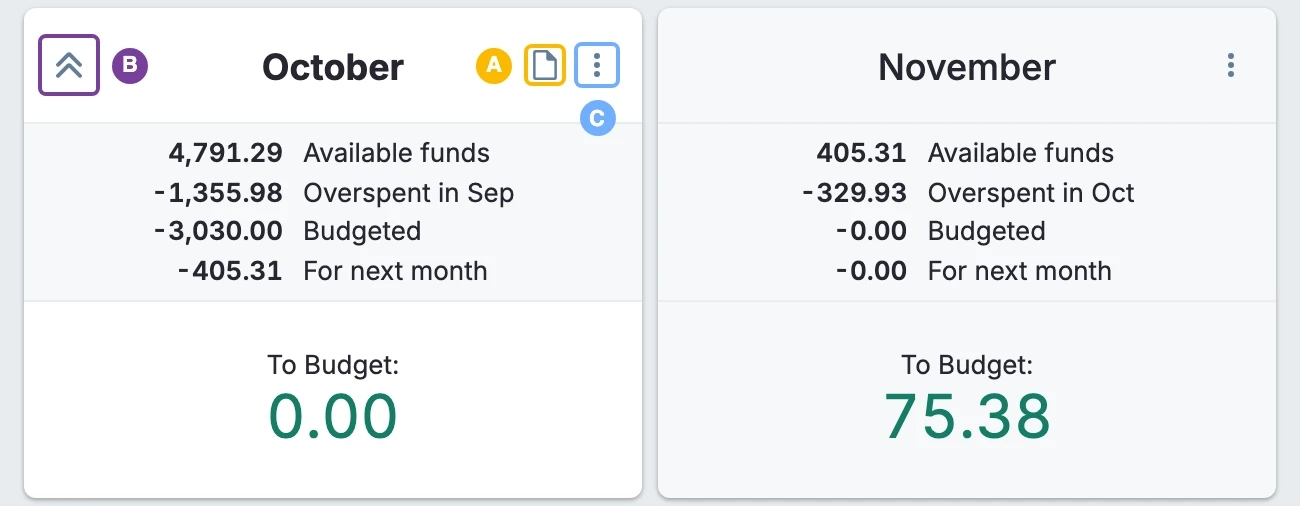
- A. Notes. Clicking on the note icon lets you add a note. Actual fully supports Markdown and the note will be rendered according to your Markdown when the cursor is hovering over the note.
- B. Minimize. You can minimize the header by clicking on the chevrons, which appear when you hover over the month.
- C. Menu. Clicking on the three vertical dots lets you execute the following functions on that month's budget categories:
- Copy last month's budget.
- Set budgets to zero.
- Set budgets to 3 month average.
- Set budgets to 6 month average.
- Set budgets to 12 month average.
When the top is minimized, you can still access the same functionality as when the top section is expanded.

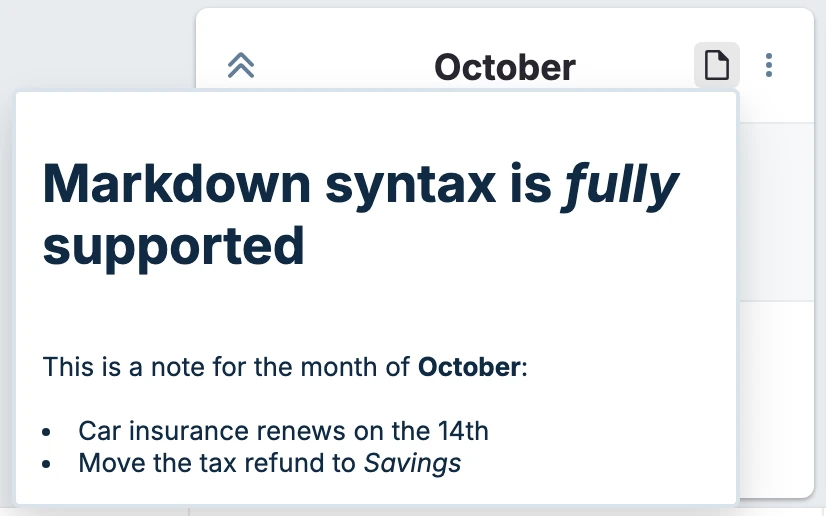
Here's the rendered Markdown when you hover over the note.
The Budget Table
Left side - category section
The budget detail section lists all your categories and their grouping. The image below shows two expense category groups, Usual Expenses and Bills, along with the income categories.
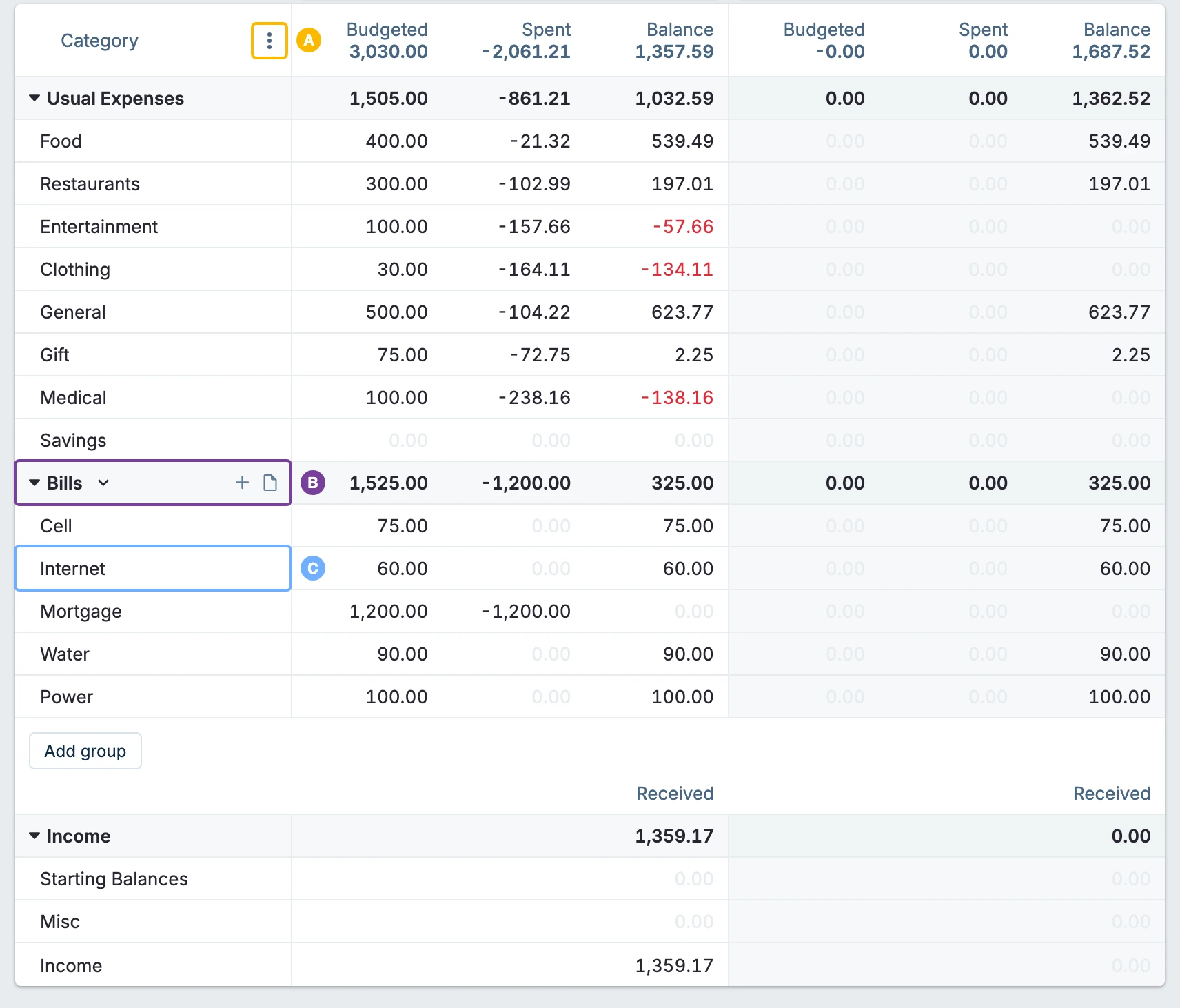
- A. Category menu. Clicking on the three vertical dots allows you to toggle hidden categories, expand all or collapse all category groups.
- B. Category group. When you hover over a category group, you can add a new category to the group by clicking the + icon or add a note by clicking the note icon. All notes on the Budget page support full Markdown. The dropdown will allow you to toggle between hide or show the category group, rename or delete the group.
- C. Category. Categories have the same functionality as groups: hide, rename and delete. You can also add a note here, with information specific to the category.
The middle - the budget section
This is the juicy part of the user interface; this is where you work with your budgeted numbers.
We have three columns under a month heading: Budgeted, Spent, and Balance.
- Budgeted is how much money we allocated to this category that month.
- The Spent column displays how much we spent in a month.
- The Balance is the difference between the Budgeted and the Spent columns + what was left over from the previous month (as a rule of thumb).
You work with the Budgeted column to manipulate your budget: You can enter a number or use a dropdown which will populate the entry based on a copy of last month's budget, or the previous 3-month, 6-month or yearly average. Notes can be added to each budget entry, also.