Managing Multi-User Support
This feature requires you to have set up an OpenID Provider. The usernames which people will log into your Actual instance will be fetched from the provider.
User Directory
Use this page to manage users who have access to the Actual Budget instance.
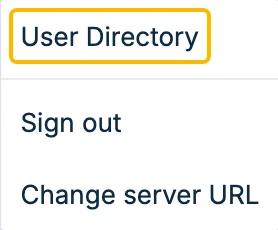
To access the User Directory page, access the menu from the server:
Users can be added, disabled, enabled, removed from this page:
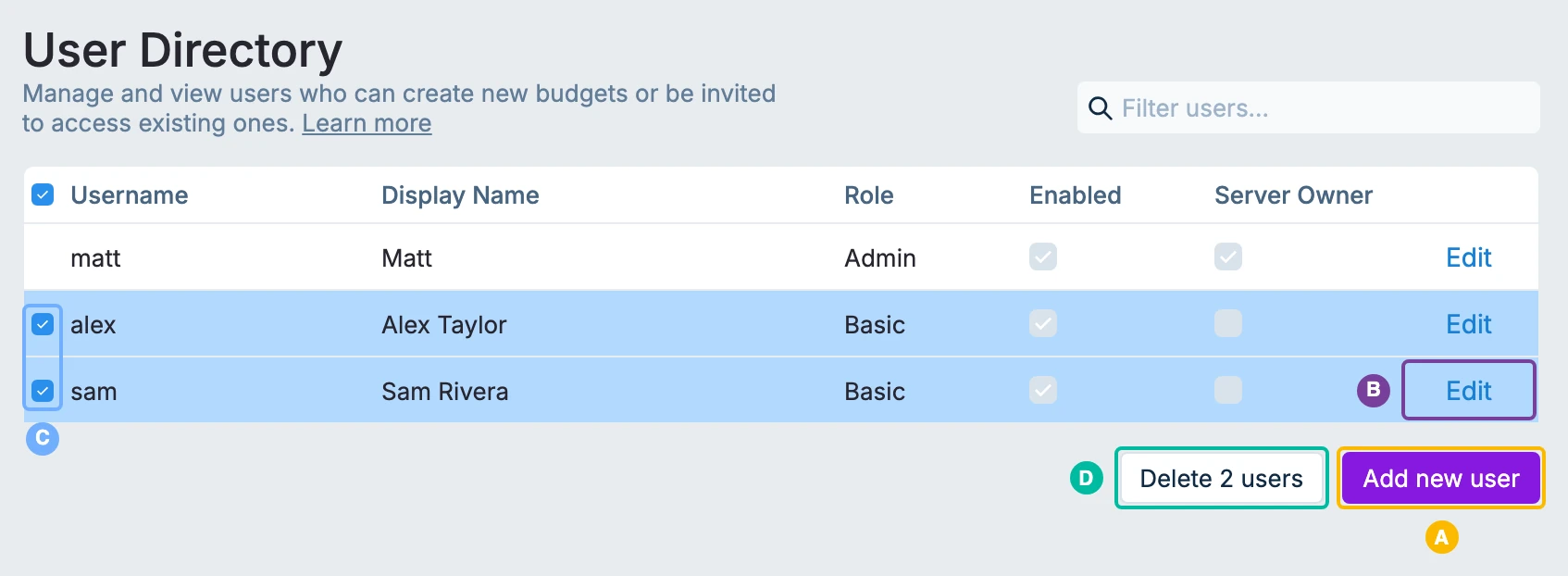
- A. Add new user. Adds a user. Their username must match the one they use with your OpenID provider.
- B. Edit. Changes a user's display name and role, or enables or disables the user.
- C. Select. Tick the users you want to remove.
- D. Delete users. Removes the selected users. It appears once at least one user is selected.
There are two user roles Basic or Admin.
-
The Basic role: Users with the Basic role can create new budgets and collaborate on budgets made by others. This role is ideal for users who primarily need to manage and participate in shared budget activities.
-
The Admin role: This role can do everything the Basic user role can. It can also add new users to the user directory and allow all users to access budget files. The role can assign ownership of a budget to another person, ensuring efficient budget management.
User Access Management
Use this page to manage user access to the current open budget file.
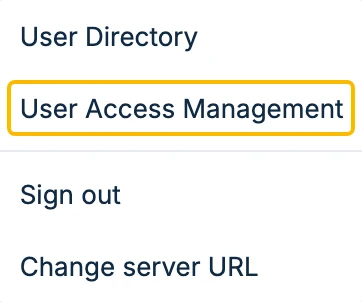
The User Access Management menu is only visible from within an open budget:
This screen is where you assign, give and revoke budget access and transfer ownership:
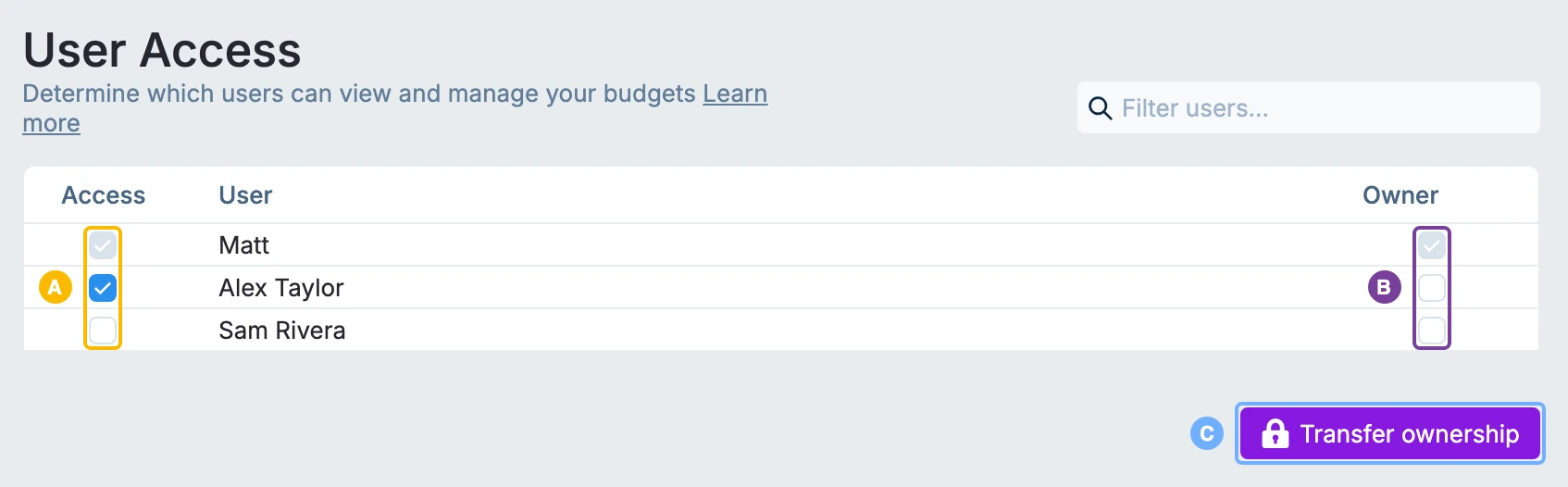
- A. Access. Tick a user to give them access to the budget, or untick them to revoke it.
- B. Owner. Shows who owns the budget.
- C. Transfer ownership. Makes another user the owner of the budget.