Categories
You can manage your categories in the budget page. Actual supports both expense and income categories.
Get some background information and recommendations on budget categories in our starting fresh guide.
Add a Category
-
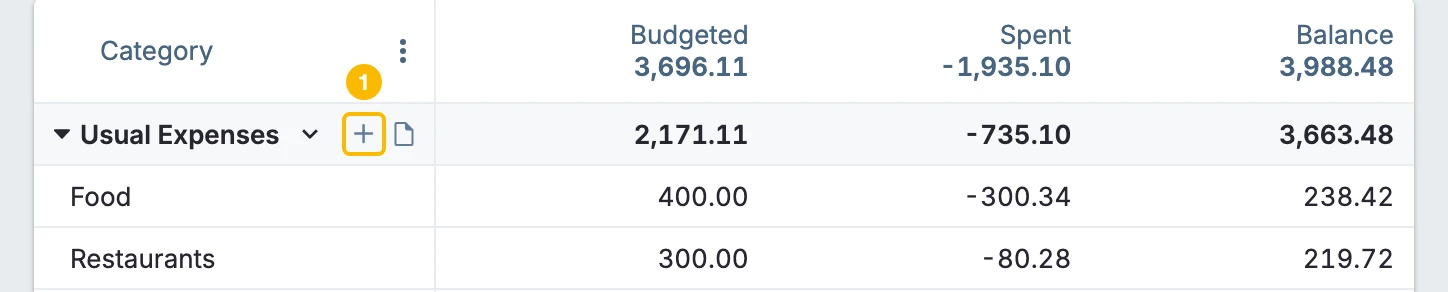
Hover over the category group and click the + (Add category) button
-
Type the name of the new category and press
Enter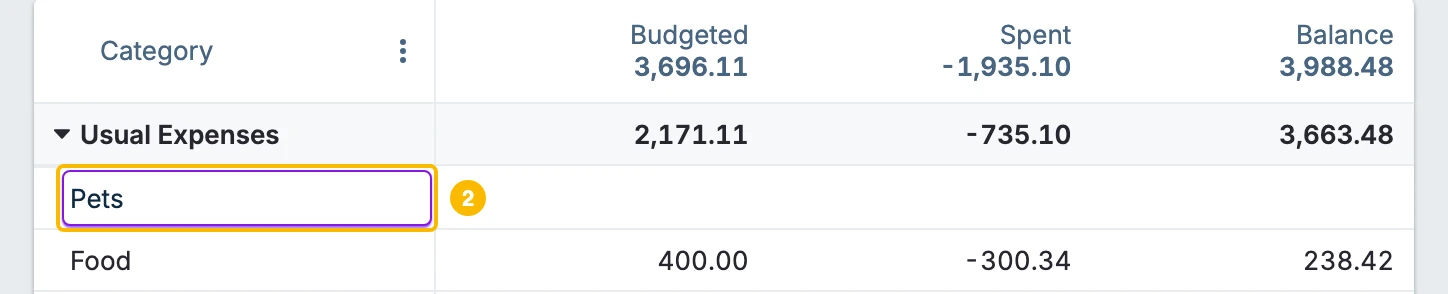
Adding a Category Group
Scroll to the bottom of the budget sheet and select Add group
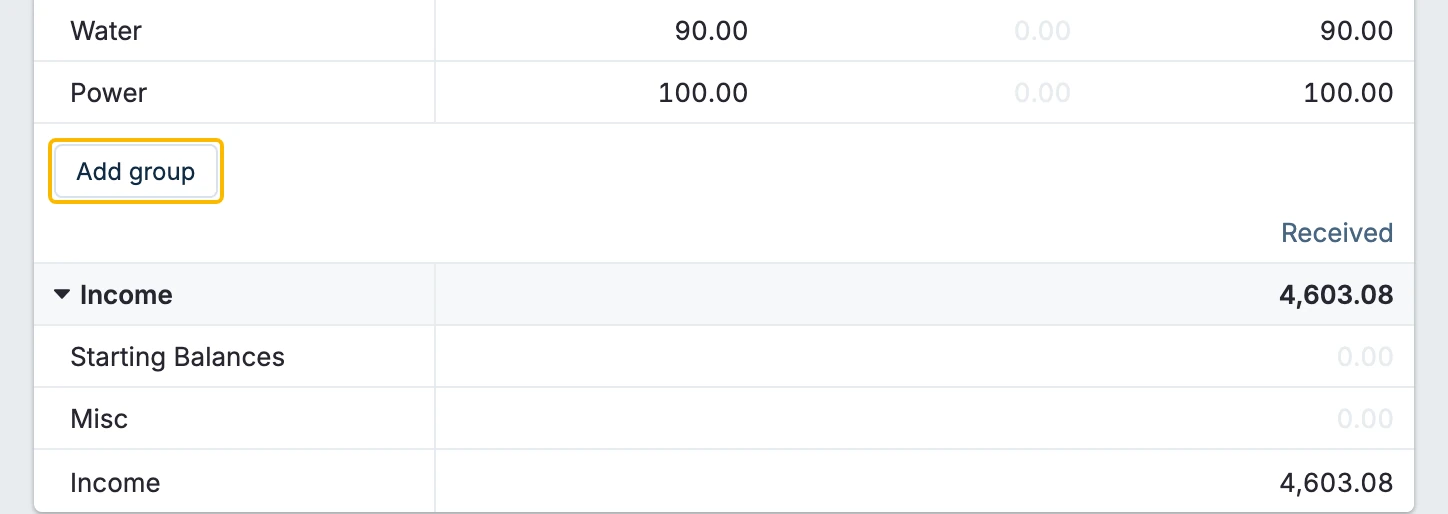
Only one income group can ever exist and it cannot be deleted.
Renaming or Deleting a Category
-
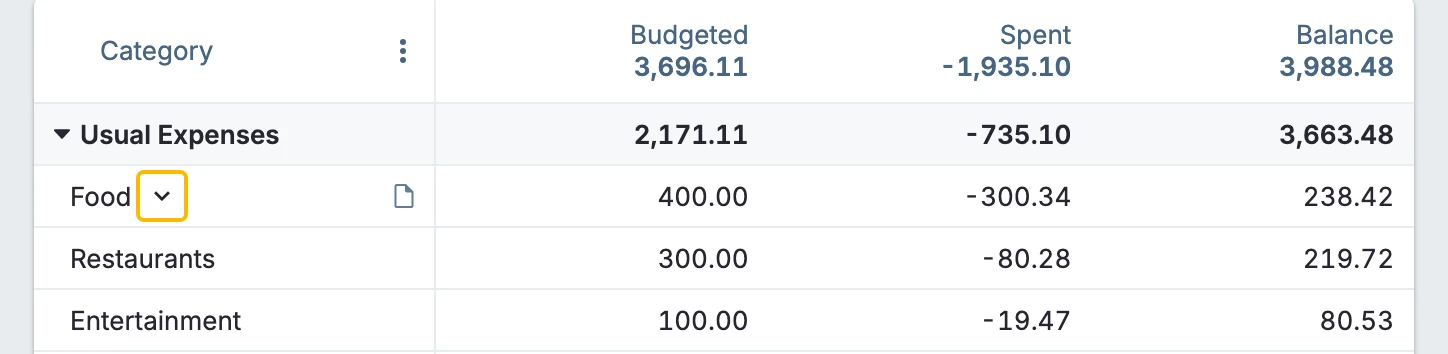
Hover over the category and press the down arrow
-
Select Rename or Delete from the menu
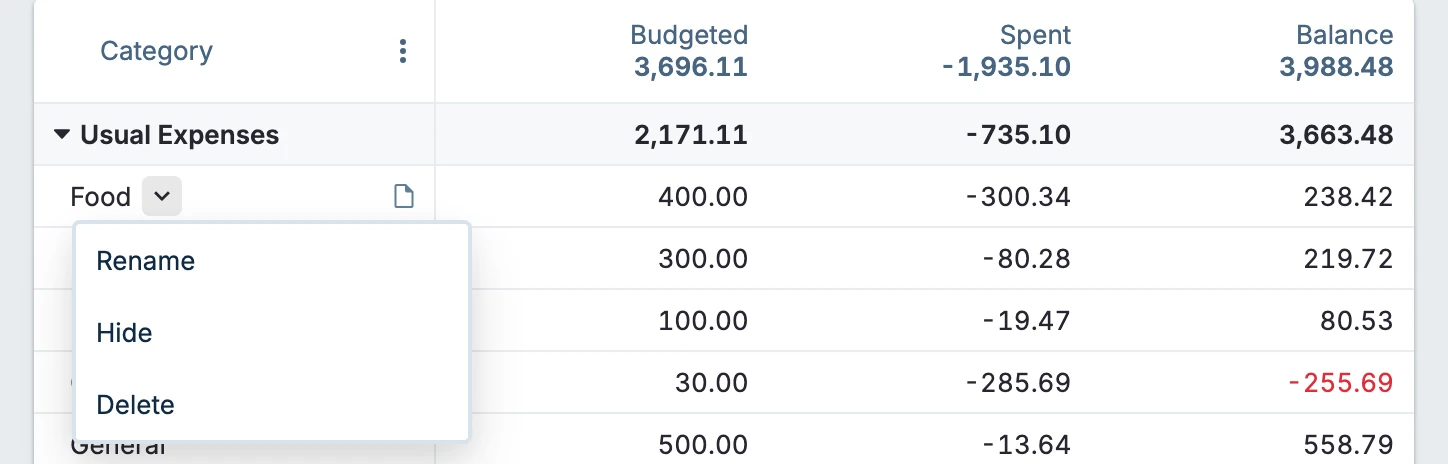
Categories are organized into groups and the same actions as above can be performed on groups.
Merging Categories
Let's say you have two categories that are the same but you want to delete one.
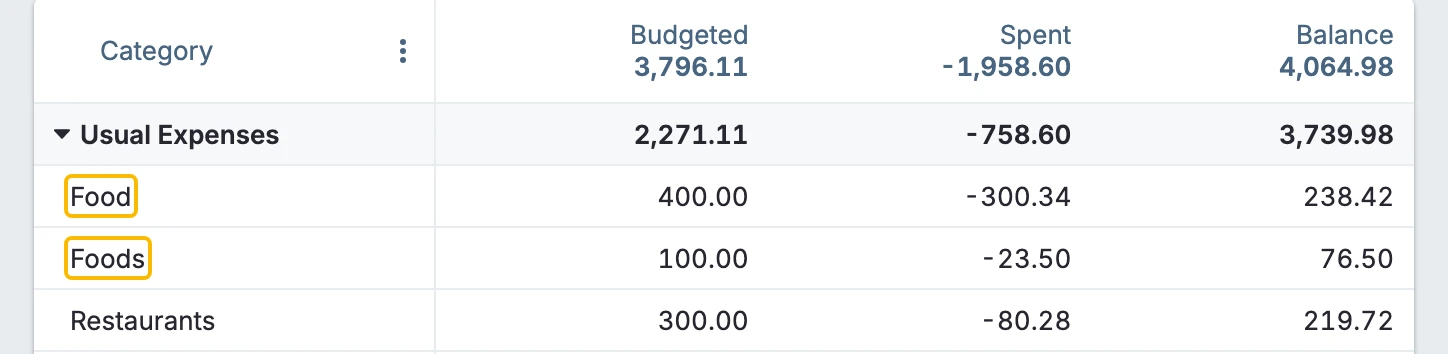
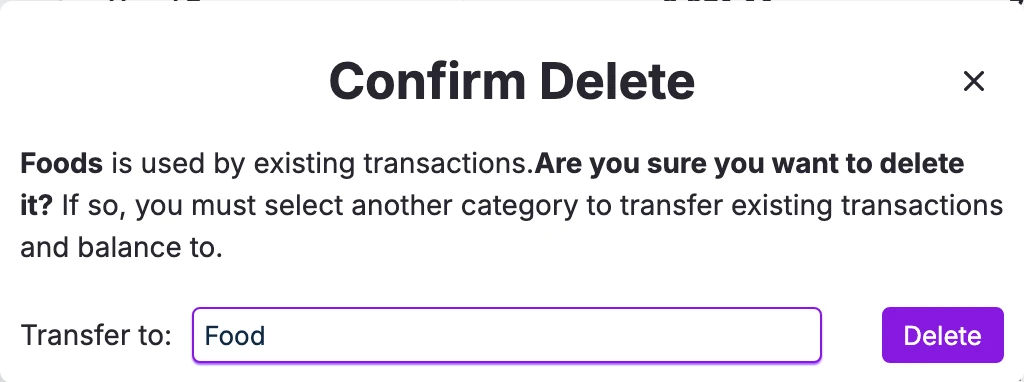
Hover over the category and select the drop down that appears and select Delete
If the category you're deleting has a positive balance OR has been used for existing transactions you will be presented with a box to select which category the balance and/or transactions should be moved to.
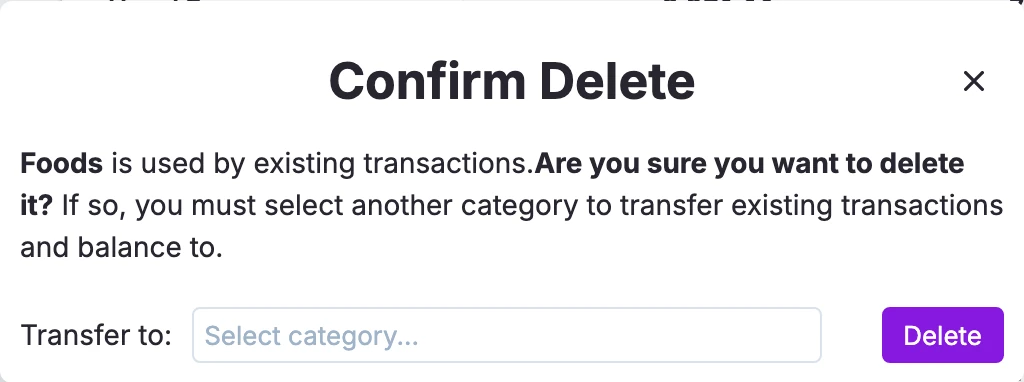
In our example, we want to use Food which will take over from Foods once you are happy with your selection, click Delete
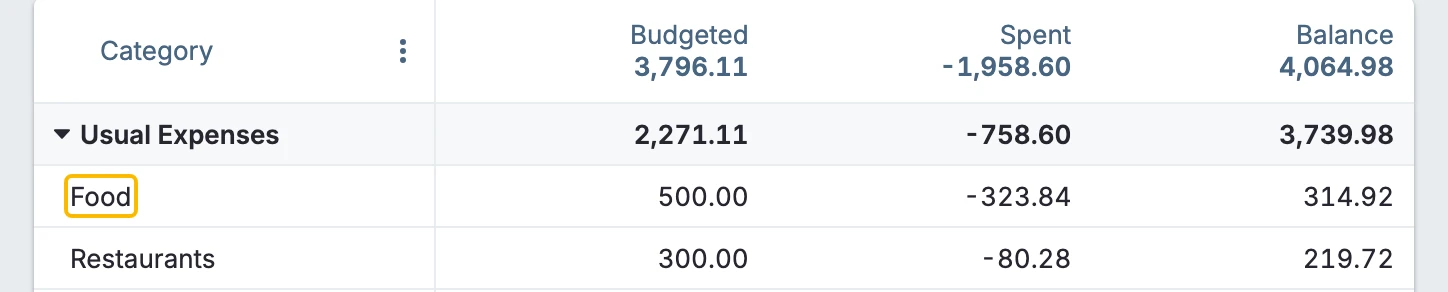
You can see in the budget that our categories have now been successfully merged and the positive balance moved to the new category.
Managing Categories
Category groups can be expanded or collapsed by clicking on the arrow to the left of the Category group name. All category groups can be expanded or collapsed at once by using the three-dot menu at the top of the category list.
Categories that are not currently needed can be hidden by using the down arrow by each category name. An example is budgeting savings for a large cost (e.g. washing machine). After the purchase is made, the category can be hidden. Hidden categories still impact your budget. When needed, hidden categories can be viewed by clicking on the three dots at the top of the category list.
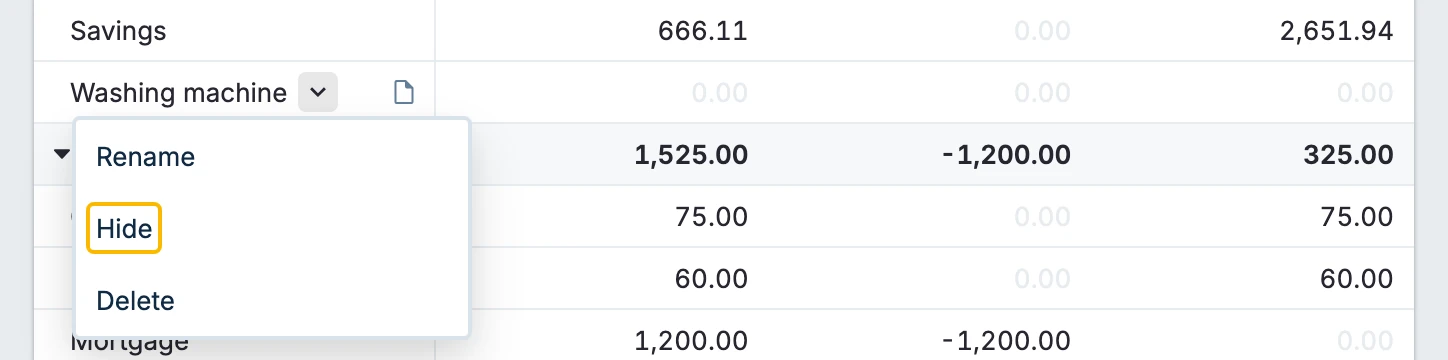
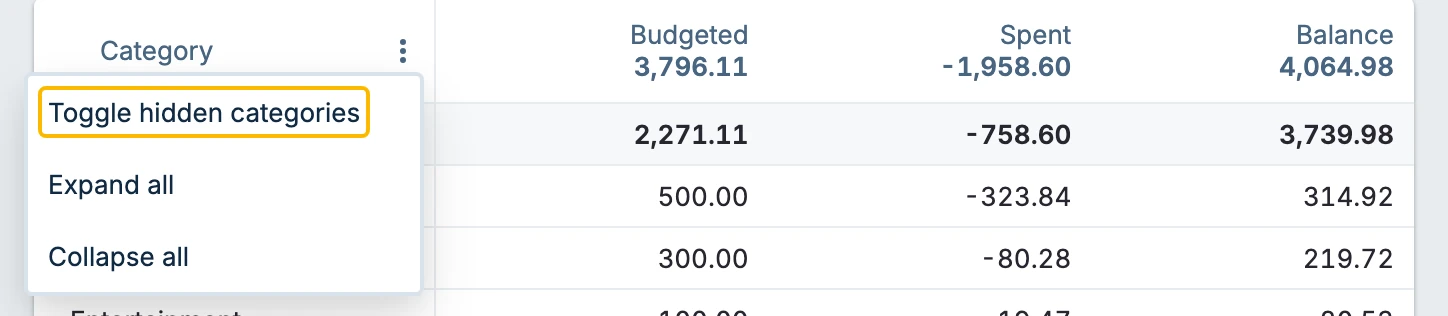
Hidden categories, when shown, are displayed in a lower-contrast color. If you find that you now require a category that you have previously hidden, you can unhide it by using the down arrow next to the category name.

Category Notes
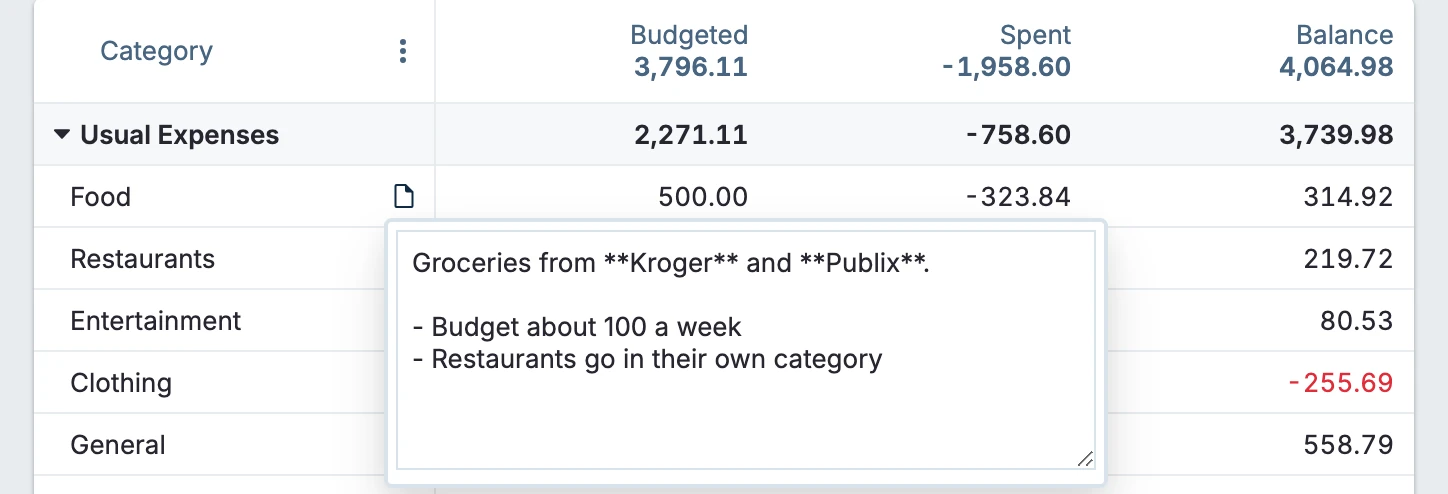
It is possible to add notes to Categories. To do this, hover over the category that you would like to add a note to. A paper icon will appear.
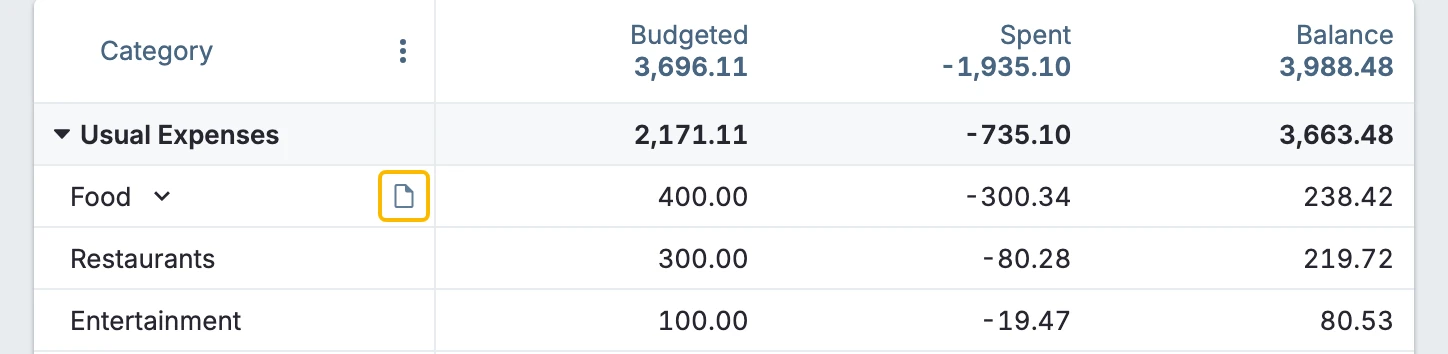
Click the paper icon and type in your note.
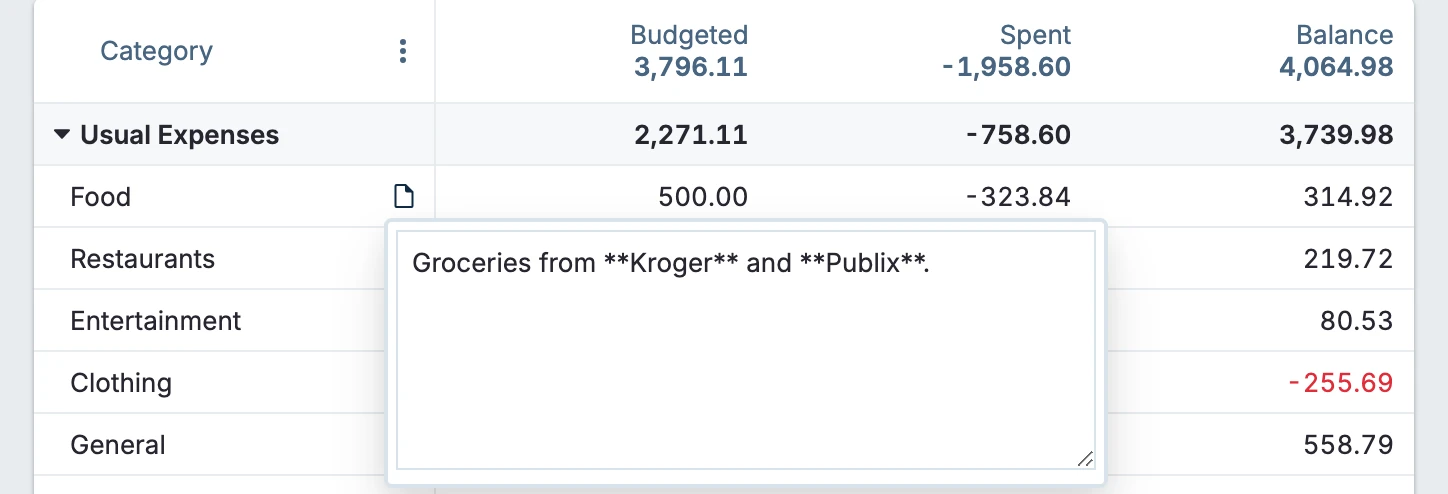
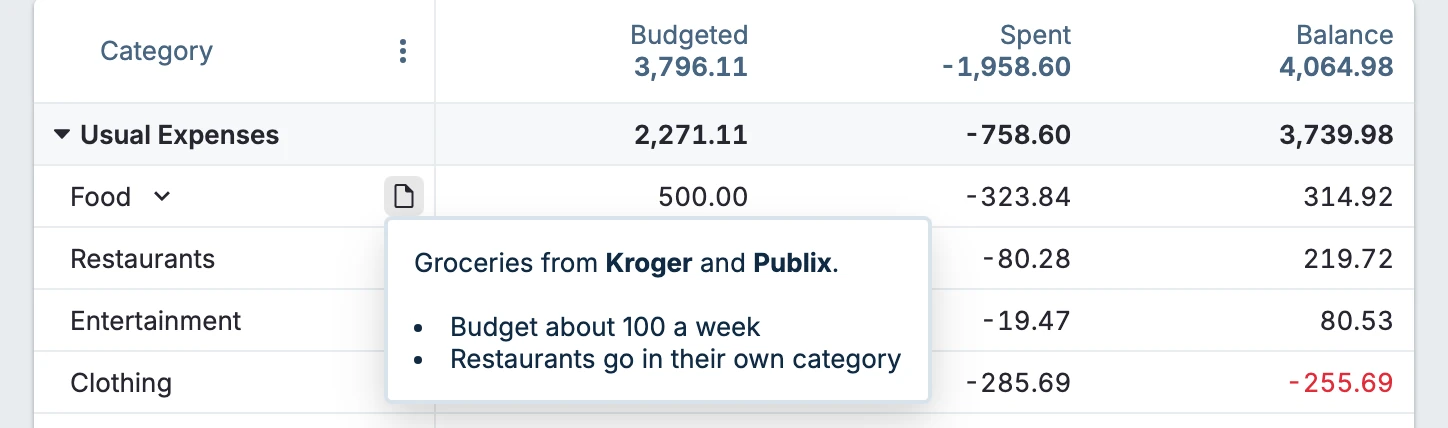
Notes support Markdown syntax for formatted notes.
Viewing Category Notes
Once a Category has been given a note it is possible to view it in one of two ways.
-
Hover over the paper icon on the category and the note contents will appear for you to view.
-
Click the paper icon. This will open the edit box where you can see the note content and also edit the note, should you wish.