Backing Up Your Actual Budget
If your budget is very old, you may have trouble restoring large backups. If you're encountering this issue, click "Reset Sync" under 'Settings' > 'Advanced' to reset sync, then make the export again. This should reduce the file size.
Why does resetting sync reduce file size? By default, Actual stores all mutations in the budget file. Every time you add a transaction, change a payee, add notes, create rules, delete a schedule, etc., a new entry is created in the budget file. This causes the file to grow over time. When you reset sync or export/re-import, all those historical changes are compressed into a single file, significantly reducing the size.
You can export your data from Actual at any time. To do so:
-
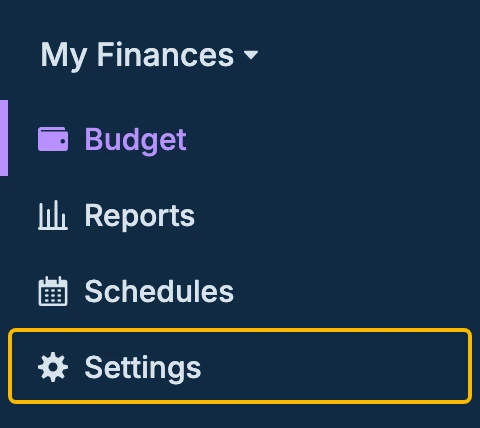
Login to your budget, click 'Settings' in the sidebar
-
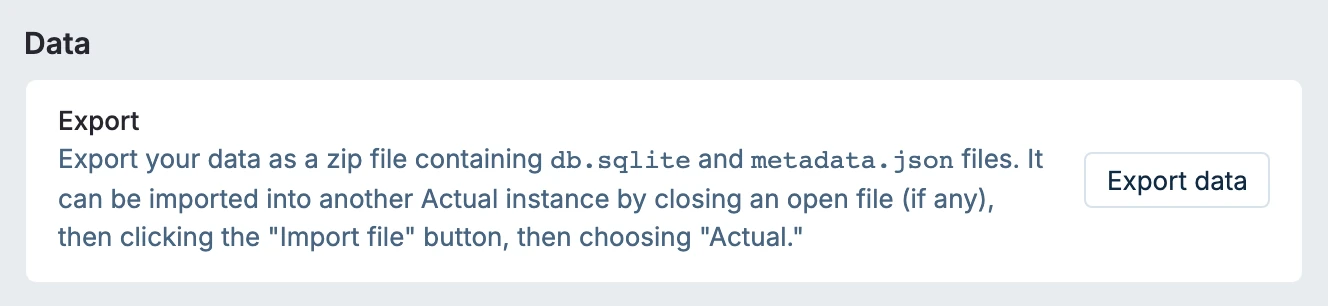
Scroll down to the Data section and click Export data
-
Save the file somewhere on your computer - that is it -- you're done.
Manually Creating a Backup From the Desktop App
This will force a backup to be created right now. Do this if you are going to do something that you might want to revert later (and don't want to use undo).
- Select the File > Load Backup… menu item
- Click Backup Now